
Already have a video recorded? You can upload it to Snap and share it as a DemoBoard, without re-recording. This works well for videos made in ScreenPal, the Consensus Screen Recorder, or any other tool.
|
Before you start: Uploading requires a role with Snap recording access. Check that your file is in a supported format (see below). |
| Prepare your video file |
Most videos upload without any changes, but a few settings make a difference:
- File type — MP4 is recommended. WEBM and AVI are also supported.
- Frame rate — use a constant frame rate. Files with a variable frame rate can fail to upload. 30 or 60 FPS both work well.
- Bitrate — there's no limit on audio or video bitrate.
- Final cut — Snap can't edit uploaded videos, so trim and finish your video before you upload it.
|
Tip: Large video files take longer to upload in Snap. |
| Upload your video |
- Open Snap from your browser toolbar.
- Click the upload icon (the cloud with an arrow) next to Record Video at the top of the panel.
- Select the video file on your computer.
- Snap opens the Share screen with your video already added under Demos to be shared. A Video Processing message lets you know you can keep going while the video processes.
Here's the Share screen right after an upload:
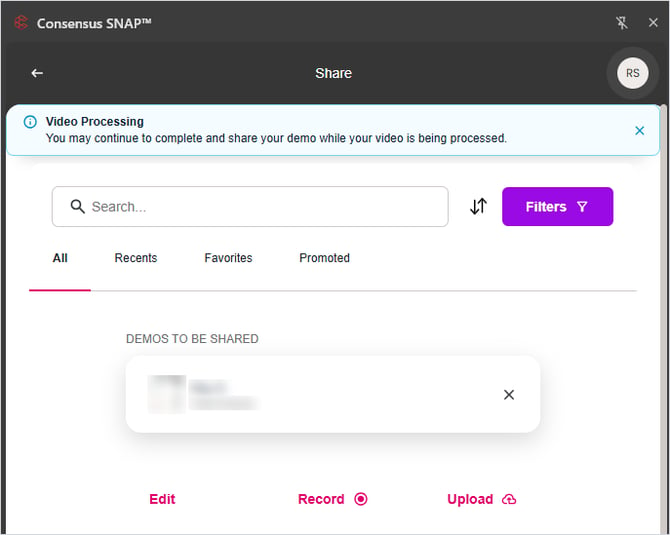
Your uploaded video on the Share screen while it processes
Your uploaded video is also added to your demo list on the Demos tab, so you can share it again later.
|
Note: Uploaded videos get subtitles generated automatically, so viewers can follow along with the sound off. |
| Share your uploaded video |
You don't need to wait for processing to finish. On the Share screen, add more demos with + if you'd like, then click Share. Add your recipients, then review the DemoBoard preview, where you can add a Personal Intro Video and adjust options under All Options. Create the DemoBoard and copy the link, insert a thumbnail or button, or send it through Gmail. For the full walkthrough, see Sending Demos with Consensus Snap.
| Troubleshooting |
- I don't see the upload icon. Your role doesn't include creating demos in Snap (the Sender/Tracker role, for example, can share demos but not record or upload them). Ask your Consensus admin about the Sender/Tracker SNAP Creator role.
- My upload fails or never finishes processing. The file most likely has a variable frame rate. Re-encode it to a constant 30 FPS with a free tool such as HandBrake, then upload again. ScreenPal records at a constant frame rate, so it's a good choice for future recordings.
- The file type isn't accepted. Convert it to MP4 and try again.
- My upload is taking a long time. Large files take a while to upload. Check your connection and keep the Snap panel open until the upload completes. For next time, shorten the video or export it at a lower resolution.
| Frequently Asked Questions |
Can I upload a video while I'm sharing other demos? Yes. On the Share screen, click Upload. When the upload finishes, the video is added to the demos you're sharing.
Can I edit an uploaded video in Snap? No. Snap doesn't offer editing for uploaded videos, so make sure your video is final before you upload it.
| Keep Exploring |
How to Record Videos with ScreenPal · Recording Videos with the Consensus Screen Recorder · Sending Demos with Consensus Snap