
ScreenPal is a full recording and editing suite that's included with your Consensus subscription. Reach for it when a video needs more polish than a quick recording: narration, zooms, cuts, overlays, captions, or a title page.
This guide walks you through opening ScreenPal from Consensus, recording, saving your video in a format Consensus accepts, and adding it to your demo.
| Just need a quick video? The built-in Consensus Screen Recorder (Create > Screen Recorder) records and drops your video straight into Consensus, with no download or export. Use ScreenPal when you want its editing tools. |
| Before You Start |
- First time using ScreenPal? You'll need to download and install the ScreenPal app before you can record. The first time you open ScreenPal from Consensus, you'll be prompted to download it from the Consensus and ScreenPal partnership page. Follow How to Install ScreenPal for the step-by-step setup, including the extra permissions on a Mac. You only do this once.
- On a Mac? Turn on ScreenPal in System Settings > Privacy & Security > Screen Recording, and in Microphone if you'll narrate. Then quit and reopen ScreenPal.
- Use a wired or built-in microphone if you can. Bluetooth headsets can drop audio.
| Quick Path |
- Open ScreenPal from Create > Partner Tools > ScreenPal, or from Record New in Step 3 of the Demo Wizard.
- In the ScreenPal recorder, choose Screen, Camera, or Both, and size the recording frame.
- Select your microphone under Narration, then click REC.
- Stop recording, then choose Save As Video File (or Edit Video first).
- Save it to your computer as an MP4.
- Upload the MP4 in Step 3 of the Demo Wizard.
| Open ScreenPal from Consensus |
You can open ScreenPal from two places in the web app:
From the Create menu
- In the left-hand navigation, click Create.
- Under Partner Tools, choose ScreenPal.
- A window titled Screen Recorder opens, showing Consensus Loves ScreenPal. Click ScreenPal to launch it.
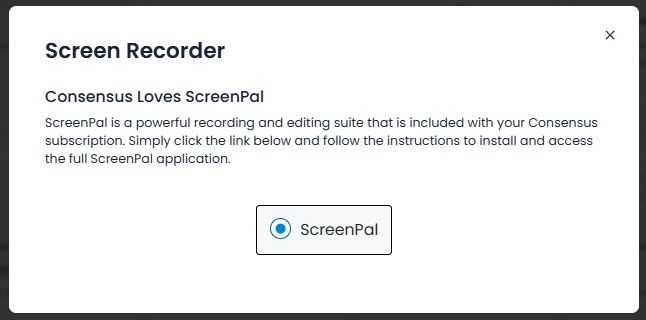 ScreenPal opening modal
While building a demo
You can also record with ScreenPal right from the Demo Wizard in Single Experience and Standard Personalization Demos:
- Open your demo and go to Step 3: Demo Content.
- Next to the video you want to record, click Record New. That's Video in a Single Experience Demo, or Intro Video, Long Video, or Short Video in a Standard Personalization Demo.
- Under Record Using, choose ScreenPal.
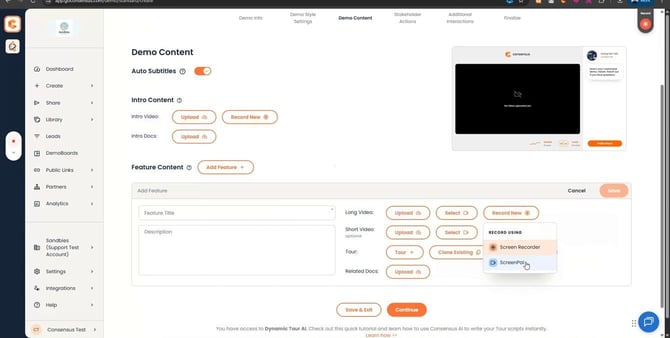
Step 3 of the Demo Wizard: Record New > Record Using > ScreenPal
The first time, you'll see Will take a few seconds if this is your first time while Consensus connects your account to ScreenPal. Then Screen recorder launched! appears, and ScreenPal opens as its own app, outside your browser, with the recording frame ready to go.
| New to ScreenPal? If the ScreenPal app isn't installed yet, you'll be prompted to download it instead of seeing the recorder. Choose Download Now and follow How to Install ScreenPal. Be sure to use the Consensus download, not ScreenPal's free sign-up, so it's connected to your Consensus plan. Once it's installed, return to Consensus and open ScreenPal again. |
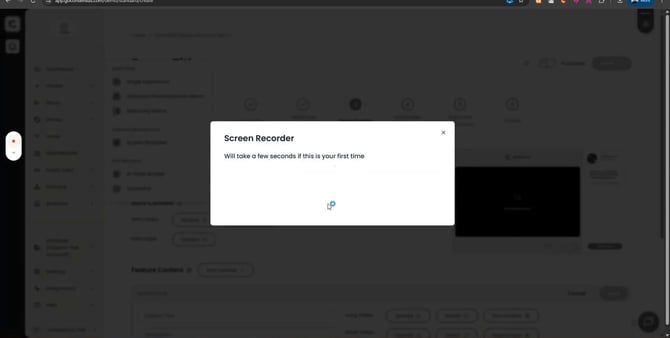
The first launch takes a few seconds
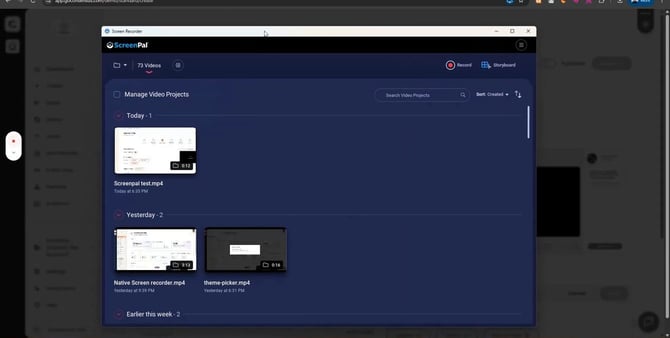
The ScreenPal app opens alongside Consensus. Your saved projects live under Manage Video Projects, and Record starts a new recording any time
| Record Your Video |
ScreenPal records anything inside the dashed frame (you'll see Recorder will record anything that happens in this frame). Set it up with the panel next to it:
- Choose what to record: Screen, Camera, or Both (your screen with your camera in a corner).
- Set the Size. Select a preset or full screen, or drag the frame's edges to fit what you want to show.
- Click the arrow next to Narration and select your microphone. Talk for a second, and you'll see the level bars move. Turn on Computer Audio too if you want your computer's sound in the video.
- Click REC. After a 3-2-1 countdown, you're recording.
- A small bar shows the timer while you record. Click Pause when you're done.
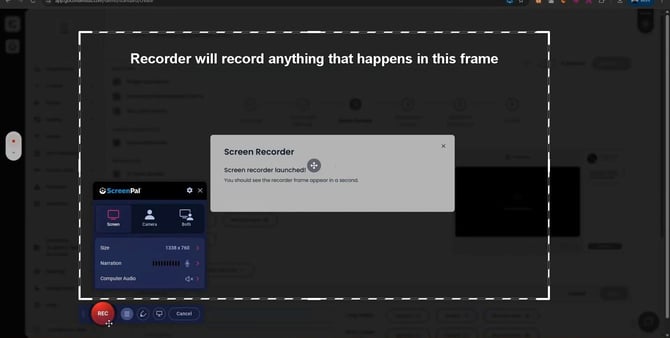
The recording frame and panel: Screen, Camera, Both, Size, Narration, Computer Audio, and REC
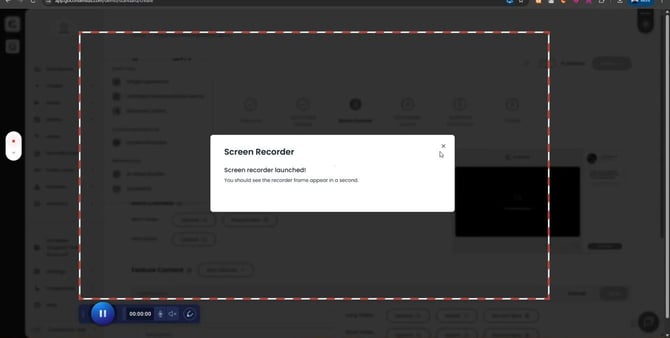
While recording: the frame turns red and white, and the bar at the bottom shows Pause and the timer
When you stop, ScreenPal opens a preview with your Options:
- Save As Video File: save it now (see below).
- Edit Video: open it in the ScreenPal editor first.
- Redo: throw this take away and record again.
- Cancel: go back without saving.
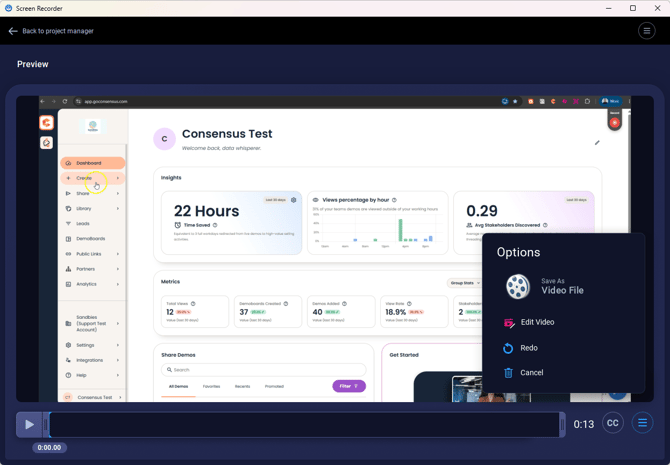
After recording: Save As Video File, Edit Video, Redo, or Cancel
| Edit |
Click Edit Video to open the ScreenPal editor. Give your project a name at the top (Enter Video Project Name), then use Tools and Cut along the bottom, and the Canvas, Audio, and Show settings on the right.
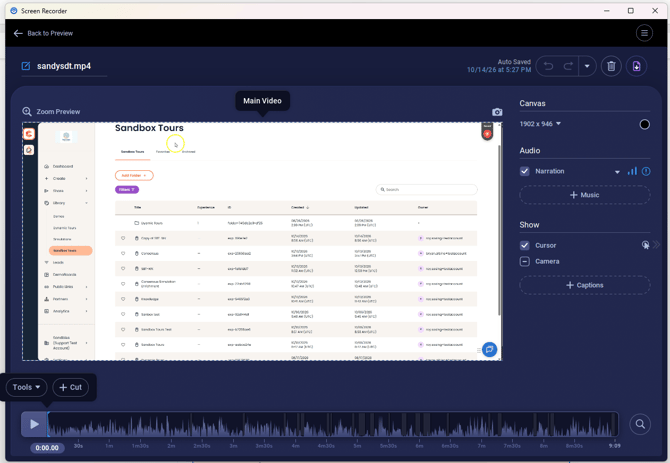
The ScreenPal editor: project name at the top, Tools and Cut at the bottom, Canvas, Audio, and Show on the right
The ScreenPal editor is where it adds the most value. Trim mistakes, cut sections, zoom in on details, add narration, overlays, captions, or a title page. These guides walk through the most common edits:
- How to Add a Title Page in ScreenPal
- Adding Captions to Your Videos in ScreenPal
- Adding Overlays in the ScreenPal Video Editor
- Add Video Content to an Existing ScreenPal Recording
| Save It as an MP4 |
Consensus needs an MP4 video file. When you're happy with your video:
- Choose Save As Video File from the Options (or from the editor when you're done editing).
- Select a folder, give the file a name, and click Save. It saves as an MP4.
- When Save to Video File shows a green check, you're done. Use Browse Folder to find the file, Play Video to watch it, or Copy Path to copy its location for uploading.
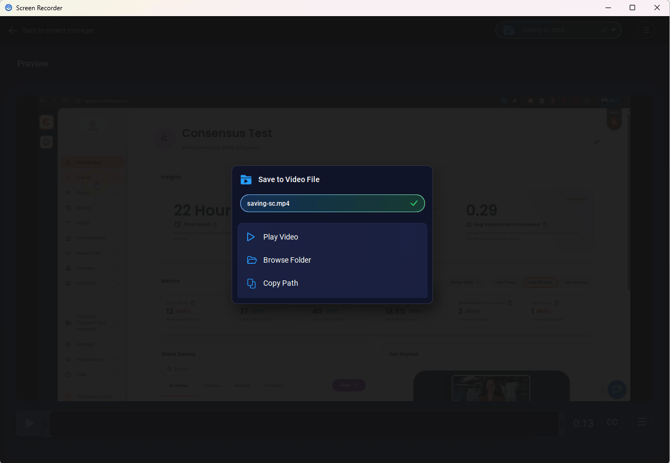
Save to Video File finished: Play Video, Browse Folder, or Copy Path
| Heads up: Export in the ScreenPal app saves a ScreenPal project file, not a video, and Consensus can't upload it. If you've already published to ScreenPal instead, open the video on screenpal.com and use Download to get the MP4. |
| Add It to Your Demo |
- Open your demo in the Demo Wizard (or create one from Create) and go to Step 3: Demo Content.
- Click Upload next to the video slot you want (for example, Video in a Single Experience Demo, or Intro Video or a feature video in a Standard Personalization Demo).
- Choose your MP4 and wait for it to finish uploading before you continue.
You'll know it worked when the video plays in the demo preview on the right.
| Troubleshooting |
- ScreenPal only records my desktop background, not my browser (Mac): turn on ScreenPal in System Settings > Privacy & Security > Screen Recording, then quit and reopen ScreenPal.
- No sound in my recording: select your microphone under Narration before you record. On a Mac, also allow ScreenPal in Privacy & Security > Microphone. A wired or built-in mic is the most reliable.
- Consensus won't accept my file: it's probably a ScreenPal project file from Export. Save it again with Save as Video File as an MP4.
- I have a WebM (or other) video that won't upload: open it in ScreenPal and save it as an MP4, then upload that. Converting the file only changes its format, not its quality. The MP4 keeps the resolution and clarity of the original video, so if the WebM is low-resolution or blurry, the MP4 will be too. For the sharpest result, record or export the original at a higher quality first.
- Nothing happens after "Screen recorder launched!": the ScreenPal app may not be installed yet. Install it with How to Install ScreenPal, and allow your browser to open the ScreenPal app if it asks. Still nothing? Contact Support.
| FAQ |
Is ScreenPal included with Consensus? Yes. Your Consensus subscription includes a ScreenPal partner plan.
ScreenPal or the Consensus Screen Recorder: which should I use? Both work well. The Screen Recorder is quicker and drops your video straight into Consensus. ScreenPal gives you more editing tools (narration, zoom, cuts, overlays, captions), and you upload the MP4 when you're done.
Where are my ScreenPal recordings saved? On your computer (or your ScreenPal account, if you publish there). They only appear in Consensus once you upload the MP4 to a demo.
Is ScreenPal the AI video tool? No. ScreenPal is for recording and editing. The AI Video Builder under Create > Partner Tools is a separate tool.
| Keep Exploring |
How to Install ScreenPal · Recording Videos with the Consensus Screen Recorder · Content Creation Templates for ScreenPal & Camtasia · Recording demos that look and sound professional