
Captions make your videos easier to follow for every viewer, including those watching with the sound off or in a second language. You have two ways to add them: build captions into the video itself in ScreenPal before you upload, or let Consensus generate subtitles automatically once the video is in your demo.
| Choose your approach |
- Captions in ScreenPal — you create and edit the captions in the ScreenPal editor, so you control every word. Best when accuracy matters, when you have a script, or when you want captions in a specific language.
- Auto Subtitles in Consensus — Consensus transcribes your uploaded video and viewers can turn subtitles on in the DemoPlayer. Best when you'd like captions on every video without extra editing.
Many teams use both: ScreenPal for a polished, scripted video, and Auto Subtitles as the default across the rest of the library.
| Add captions in ScreenPal |
Once you've recorded and edited your video, you'll find the captions tools in the editor:
- With your video open in the ScreenPal editor, click the CC (closed captions) button.
- Choose how you'd like to create the captions (each option is described below), then click Start.
- Review the captions against the narration and adjust any wording or timing in the captions editor.
- Before you publish or export, turn on Open captions so the captions appear on the video itself. You'll know it worked when the captions show in the preview without needing a viewer toggle.
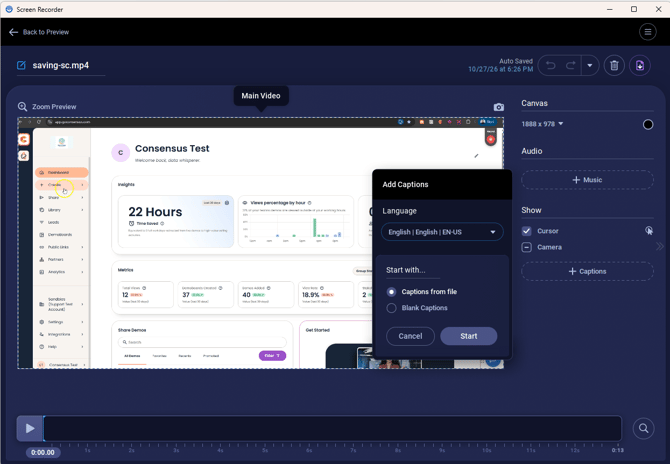
Caption options in the ScreenPal editor
ScreenPal offers ways to create captions:
- Captions from file — load captions you've already prepared as a .txt, .sbv, or .srt file, then edit them in the built-in captions editor. This works well if your script is already written, or if you have a translated captions file.
- Blank captions — type the captions yourself. ScreenPal breaks the video into sections; click the play button on a section to hear the audio, and it pauses as you type so you can match the text to the narration.
When the captions look right, export the video and upload it to your demo as usual.
| Turn on Auto Subtitles in Consensus |
If you'd rather not add captions by hand, Consensus can generate subtitles for videos you upload. You'll find the setting in the Demo Builder:
- Open the demo you'd like to edit and go to the Demo Content step.
- Turn on the Auto Subtitles toggle at the top of the step.
- Upload or keep your videos as usual. Once a video's transcript is ready, viewers can turn subtitles on from the CC option in the DemoPlayer.
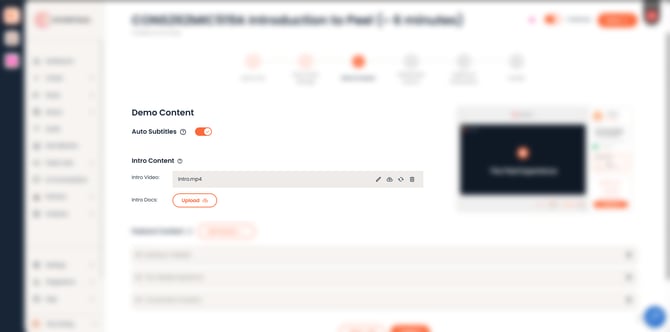
Auto Subtitles toggle in the Demo Wizard step 3
In most cases, there's nothing more to do here. Consensus transcribes each video automatically when you upload it, and that transcript is what powers the subtitles.
Occasionally, a video won't have a transcript yet, for example one that was uploaded some time ago. You'll spot it in the Demo Content step by an extra Transcribe icon on that video, and you can start the transcript yourself:
- In the Demo Content step, find the video under Video.
- Look at the icons on the right of the video. If the video hasn't been transcribed, you'll see a Transcribe icon next to the pencil icon (hover over it to see the label). If the icon isn't there, the video already has a transcript.
- Click Transcribe. The icon turns into a spinner while the transcript is created.
- When the spinner finishes, preview the demo. You'll know it worked when the CC option appears in the DemoPlayer for that video.
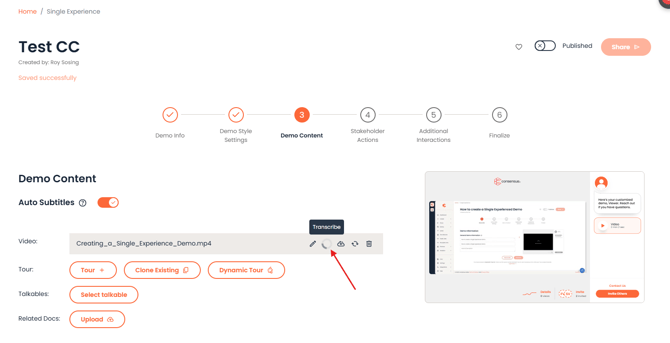
Transcribe icon on a video in the Demo Content step
|
Note: If you don't see the Auto Subtitles toggle, it may not be enabled for your account yet. Contact your Consensus account team or Support to turn it on. |
| Troubleshooting |
The CC option doesn't appear in the DemoPlayer, even though Auto Subtitles is on. The video may not have a transcript yet. Open the demo, go to the Demo Content step, and check the icons on that video. If you see a Transcribe icon next to the pencil icon, click it, wait for the spinner to finish, then preview the demo again. If there's no Transcribe icon, the video is already transcribed, so contact Support with the demo name, and we'll check why the subtitles aren't showing.
My ScreenPal captions don't show up after uploading to Consensus. Make sure Open Captions were turned on before you exported. Captions that aren't set as open captions aren't built into the exported video file.
Some videos in a demo have captions, and others don't. Auto Subtitles applies per video once each has a transcript. Check each video for the Trigger Transcription option and run it on any that are missing one.
| FAQ |
Can I edit the subtitles Consensus generates? Not at this time. If you need exact wording, add captions in ScreenPal before you upload, where you can edit every line.
Can viewers see captions in another language? For full control over the language, upload a translated captions file in ScreenPal (Captions from file) before exporting. For questions about Auto Subtitles in other languages, contact your Consensus account team.
Do Auto Subtitles work on videos recorded with Consensus Snap or the Screen Recorder? Not at this time. Auto Subtitles are designed for videos you upload to a demo, so videos recorded with Consensus Snap or the native Screen Recorder in the web app won’t show the CC option. If captions are important for a video, record it in ScreenPal, add captions there, and upload the exported file to your demo.
Do viewers need to do anything to see subtitles? For Auto Subtitles, viewers turn them on with the CC option in the DemoPlayer. Open captions from ScreenPal are always visible, with nothing for the viewer to turn on.
| Keep Exploring |
Adding Overlays with the ScreenPal Video Editor · How to Add a Title Page Using ScreenPal · How to Create Discovery Demos · Recommended Content Creation Guidelines