
Discovery Demo Creation Guide
Discovery Builder is Consensus's most flexible demo type. It links tours, video demos, and Simulations into one personalized buyer experience. Viewers follow branching paths based on their answers to discovery questions, so the same link adapts for executives, managers, and end users without you sending three different demos.
This guide walks you through building one, either by hand on the canvas or with a head start from Discovery Demo Builder AI, and what your buyers will see once it's live.
| Before You Start |
- Who can build one: four roles have Discovery Demo Creator permissions on by default: Admin, Content Manager, Content Author, and Public Link Manager. Custom roles can be granted the permission in Roles & Permissions.
- Using AI to build: Discovery Demo Builder AI needs AI enabled for your organization. If you don't see it, ask your admin, or contact your Consensus account team or Support.
- Have a background image ready: you'll add it in Step 2 so buyers never see a plain grey screen between content blocks.
| Quick Path |
- Click Create in the left-hand sidebar, then choose Discovery Demo.
- Add your titles and description in Step 1: Demo Info.
- Set language, branding, background image, and contact info in Step 2: Demo Style Settings.
- In Step 3: Demo Content, add an optional intro video, then build your flow by hand or with Discovery Demo Builder AI.
- Set the share button label in Step 4 and an optional static CTA in Step 5.
- Add IDs, tags, a thumbnail, and access in Step 6, preview it, then click Publish.
| Open the Demo Wizard |
Click Create in the left-hand sidebar. You'll see your options grouped by type. Under Demo Types, choose Discovery Demo:
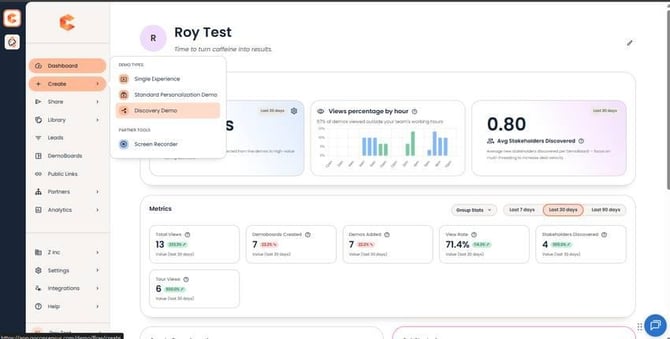
Create menu expanded, with the Discovery Demo option
| Step 1: Demo Info |
Start with the basics. The internal fields are for your team, and the external one is what buyers see:
- Internal Title and Description: how your team finds the demo in the library.
- External Title: shown to viewers on the cover page. It's also used to name DemoBoards automatically when your account doesn't require a DemoBoard name, so write it with the buyer in mind.
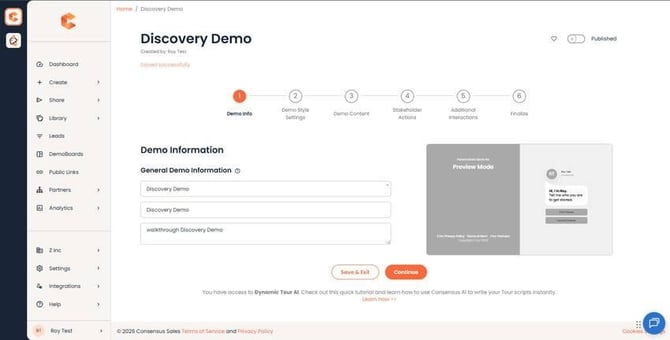
Step 1: Demo Info
| Step 2: Demo Style Settings |
Next, make the demo look like you. Pick the DemoPlayer language, choose your theme or brand colors and logos, and set the contact information. That contact becomes the main point of contact attached to this demo.
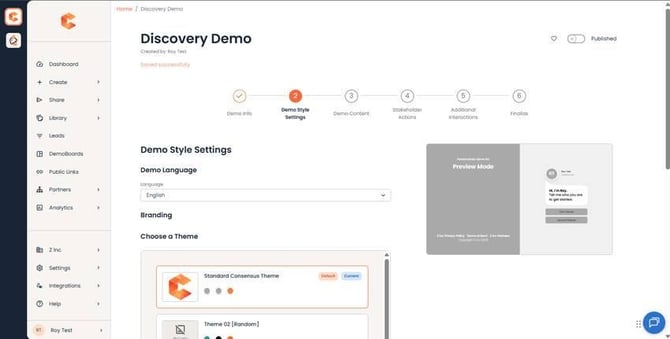
Step 2 (top): language, theme, logos, and brand colors
Before you move on, upload a background image. It fills the space between content blocks, and Consensus adds a soft ambient glow around it, so buyers never see grey screens or black bars on any screen size.
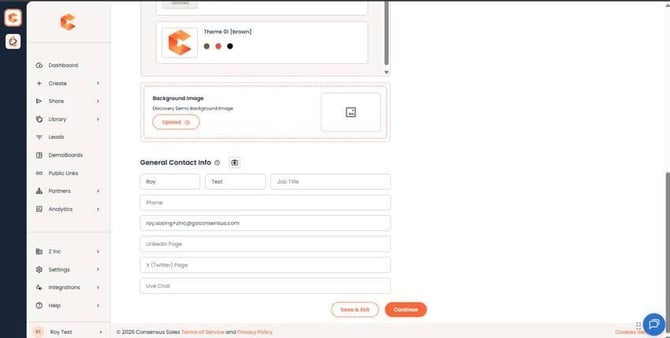
Step 2 (bottom): Contact Info
| Note: Demo Style Settings override your account-level tour brand settings for this demo. If a tour looks different inside your Discovery Demo than it did in the tour editor, this step is the first place to check. Click-target colors are locked in when a tour is captured, so set your tour brand settings before you capture. |
| Step 3: Demo Content |
This is where your flow comes together. Start with an optional intro video: upload a new one or pick a video already in your library. You can also leave it blank so sellers attach their own Personal Intro Video when they send.
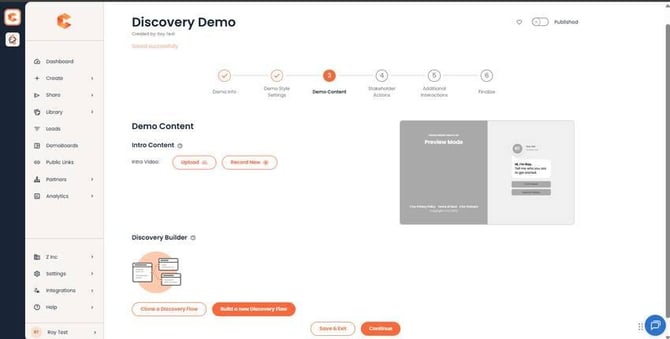
Step 3: Demo Content, with the intro video and the entry point to Discovery Builder
Then choose how you'd like to build. Click Build a new Discovery Demo to lay out the flow yourself, or let Discovery Demo Builder AI draft it for you and fine-tune from there.
Tip: if a video doesn't have a transcript yet, click Trigger Transcription next to its Rename menu to generate one right away.
| Build It Faster with Discovery Demo Builder AI |
If you'd rather not start from a blank canvas, Discovery Demo Builder AI turns a short conversation into a structured demo, using the best-performing content already in your library:
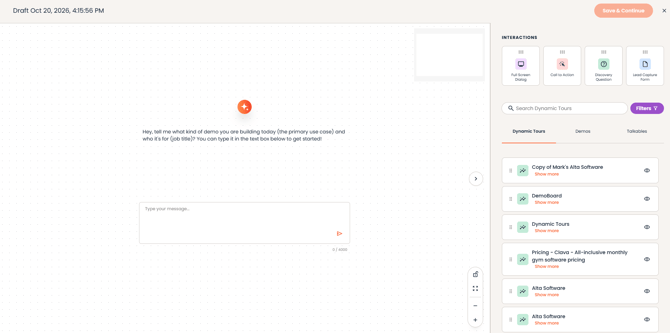
- Open the Discovery Demo builder canvas.
- Tell the AI what you're building and who it's for. Choose Executive, Manager, End User, IT Lead, or Something Else, or describe your audience in your own words.
- Answer the follow-up questions about what each persona cares about or the problem you solve for them.
- Review the generated demo. Each asset shows a confidence rating and a plain-language reason it was picked.
- Adjust anything you'd like: swap a video for a tour (or the other way around), pick an alternative from the sidebar, or edit the flow directly.
- Publish, then leave a thumbs up or down to help improve future recommendations.
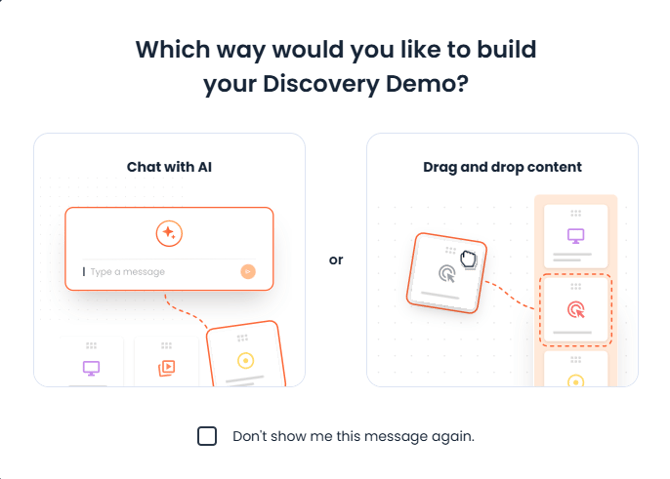 Discovery Demo Builder opening modal
Good to know: the AI only recommends content you already have, and it never creates new videos or tours. If your library is thin for a persona, it tells you rather than filling the slot with weaker content. Dynamic Tours aren't included in its recommendations yet.
| Building Blocks |
Whichever way you start, Discovery Builder has two kinds of blocks. Interaction blocks guide the viewer:
- Full Screen Dialog — a takeover screen with text. Use it to set context or introduce a concept.
- Call to Action — sends viewers to a Simulation, a website, or any external URL.
- Discovery Question — asks viewers a question, and their answer routes them to the next step.
- Lead Capture Form — your standard Consensus lead gate. It replaces lead forms inside any pre-existing content blocks.
Content blocks are anything you've already built:
- Standard Personalization Demos — their intro videos carry over into the Discovery Demo.
- Single Experience Demos — including those with video, Story Path Tours, or Dynamic Tours.
- Dynamic Tours from your Library.
| Building a Flow |
The canvas opens with a Start node. From there:
- Drag content blocks or interaction blocks onto the canvas.
- Click the orange dot on each block to draw a connection to the next block.
- To loop a viewer back to an earlier point, connect a block back to a previous one.
- Click Save & Continue when your flow is built.
A few tips from teams who build a lot of these:
- Keep it to 3–5 Discovery Questions. That's enough to personalize the path without it feeling like a form. Past that, viewers start to drop off.
- Make every question count. If an answer doesn't change what the viewer sees next, cut the question.
- Go broad, then narrow. When you have lots of content, ask a broad topic question first, then a more specific one, rather than one question with a long list of answers.
- End with a next step. Use a Call to Action block to point viewers to a Simulation, a meeting link, or your website.
| Step 4: Stakeholder Actions |
Update the share button label or keep it as Invite Others. This is what viewers click when they want to bring other stakeholders into the experience.
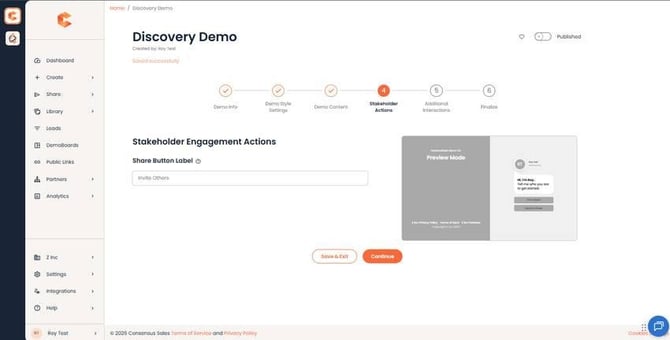
Step 4: Stakeholder Actions, with the share button label
| Step 5: Additional Interactions |
Add a static Call to Action that stays visible throughout the player experience, such as "Book a meeting".
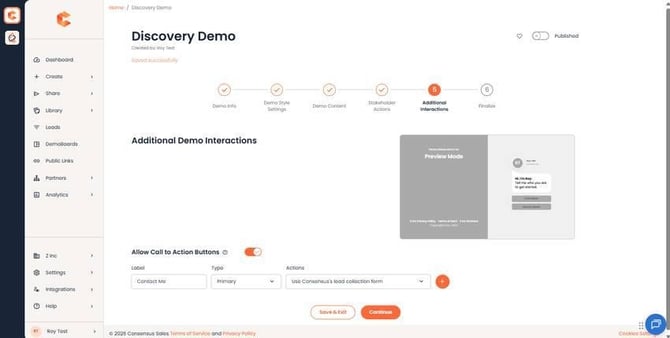
Step 5: Additional Interactions, with the static CTA
| Step 6: Finalize, Preview, and Publish |
You're almost there. Set your Demo IDs, tags, folder, thumbnail, and access:
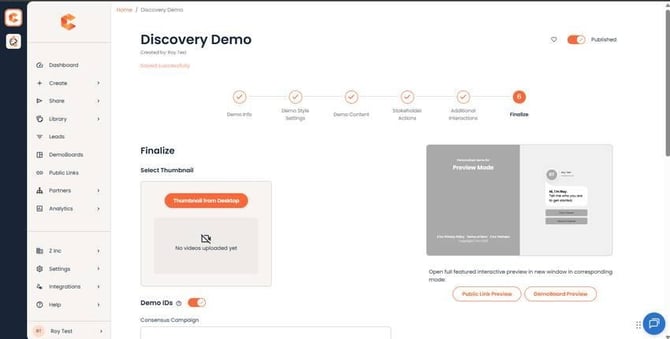
Step 6 (top): Demo IDs and the thumbnail picker
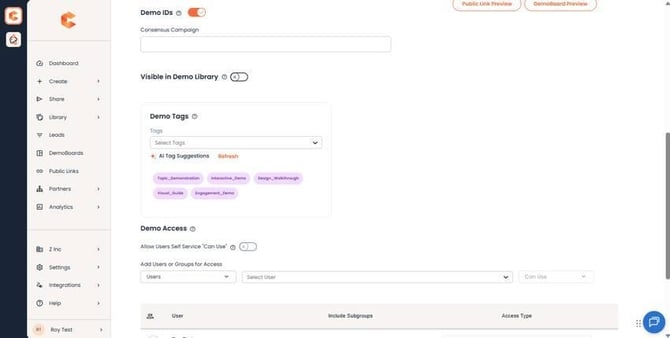
Step 6 (middle): Tags and Folder
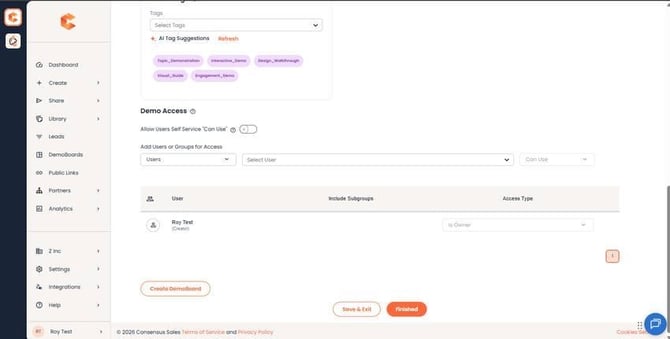
Step 6 (bottom): Demo Access
| Note: Discovery Demos don't generate a thumbnail automatically, so upload one here. Your Step 2 background image works well as a fallback. |
Use the preview link to walk through the experience as a viewer would. When it looks right, click Publish to make the demo available for DemoBoards and Public Links. Unpublished demos are hidden from most users' views. You can also click the heart to add it to your Favorites.
You'll know it worked when the demo shows as Published in your Demo Library and you can pick it when creating a DemoBoard or Public Link.
| What Your Viewers See |
- Full screen, straight away. Discovery Demos open in a clean full-screen view with no extra "Let's Go" screen.
- A navigation bar on hover. Viewers can move forward or back, return to the beginning, or jump to any section from a table of contents, so nobody gets stuck.
- No black bars. Your background image is surrounded by an ambient glow that fits any screen.
| Sending It and Seeing the Answers |
- One per playlist. A Discovery Demo plays on its own, so a DemoBoard with a Discovery Demo can't include other demos in its playlist.
- Every answer, in one place. The DemoBoard detail page shows a Q&A section that combines the answers from every recipient, so you can spot what the whole buying group cares about.
- Each viewer's answers. The heatmap summary for DemoBoards and Qualified Leads includes a Questions and Responses section with the exact answers given in that session.
| Use Cases |
Automate discovery. Open with a Discovery Question like "What's your biggest challenge right now?" and route viewers to the matching solution path. You learn about the buyer before you ever speak to them, and the demo adapts to their context.
Build a self-serve training library. Discovery Demos also work for learning, not just selling, for example letting customers rewatch the training sessions they missed. Group your videos by topic and use layered questions (pick a topic, then pick a session) so viewers find what they need without scrolling through a long list.
| FAQ |
Is there a limit on answers per Discovery Question? Keep each question to a short list of answers that viewers can scan at a glance. If you have a lot of content, layer your questions (broad topic first, then specific) instead of adding more answers to one question.
Can I add a Discovery Demo to a playlist with other demos? No. A Discovery Demo plays on its own, so a playlist with one holds only that Discovery Demo.
Does Discovery Demo Builder AI create new content? No. It recommends from content already in your library and explains each choice. You can still build any Discovery Demo by hand.
Where do I see how viewers answered? On the DemoBoard detail page (all recipients combined) and in the heatmap summary for each viewer's session.
Why doesn't my Discovery Demo have a thumbnail? Discovery Demos don't generate one automatically. Upload one in Step 6. Your Step 2 background image is a good fallback.
My tour looks different inside the Discovery Demo. Why? Demo Style Settings in Step 2 override your account-level tour brand settings for that demo. Check there first.
| Related Articles |
How to Create a Single Experience Demo · How to Create a Standard Personalized Demo · Getting Started with Consensus Tours: Choosing Your Tour Type · How to Create a DemoBoard within Consensus · Demo Thumbnails