
A short title card at the start of each feature video gives your demo a consistent, finished feel, and it tells viewers exactly what they're about to see. In ScreenPal, you can build one right in the editor: a background image, with your company name and title layered on top as text.
|
Before you start: You'll need ScreenPal installed and a recording to add the title card to. Have a background image ready too, such as a branded backdrop or a screenshot of a slide. If you're new to ScreenPal, see How to Install ScreenPal and How to Record Videos with ScreenPal. |
| Quick path |
- Record your video, leaving 3–4 seconds of silence at the start with the mouse off screen.
- In ScreenPal, open the recording and choose Edit Video.
- Add a background image with Tools > Overlay > Image, resize it to cover the full screen, and set it to 3–4 seconds.
- Add your company name and title with Tools > Overlay > Text, matching the same duration.
- Play the opening back to check the result.
| Record with a title card in mind |
A little planning while you record saves editing later:
- Leave 3–4 seconds of silence at the start before you begin narrating. That's where the title card will sit.
- Don't worry about what's on screen during those first seconds. The title card covers it completely.
- Keep your mouse off the screen you're recording for that opening stretch. If the cursor moves during the title card slot, it appears in front of your title card.
With your recording ready, the next step is opening it in the editor.
| Open your recording in the ScreenPal editor |
- In ScreenPal, find your recording under Manage Video Projects and select it. The recording opens in Preview, with an Options menu beside it.
- Click Edit Video. The editor opens, with your recording in the preview and the timeline along the bottom.
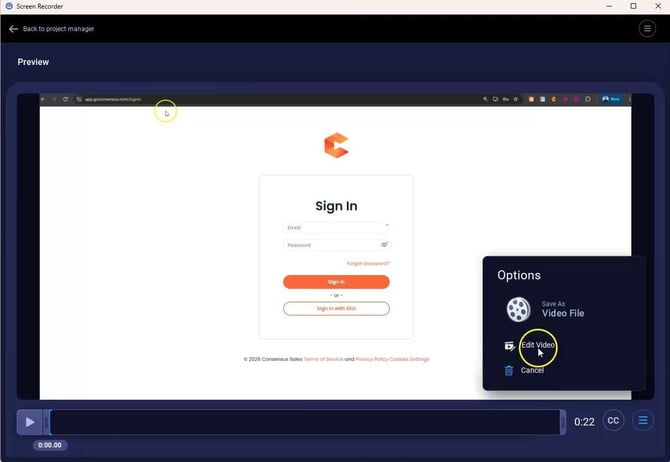
Options > Edit Video in ScreenPal
Before adding anything, move the playhead to the very start of the timeline, since that's where the title card begins.
| Add the background image |
The background image is the base layer of your title card. Your text will sit on top of it.
- Click Tools at the bottom left of the editor, then choose Overlay > Image.
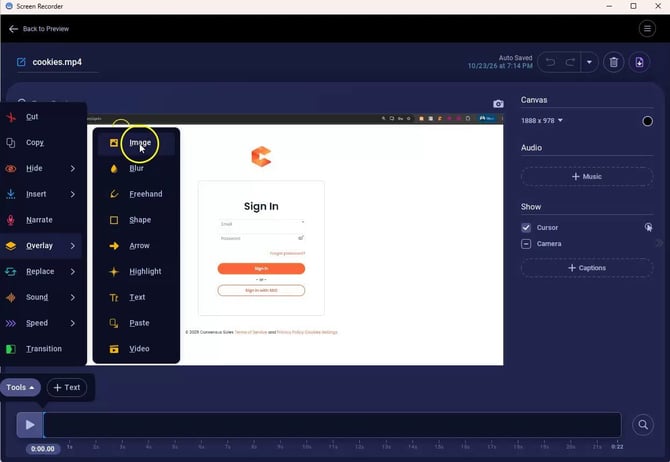
Tools > Overlay > Image in the ScreenPal editor
- In the Where is your image coming from? window, click Select under Choose from My Files and pick your image. Images you've used before appear under Recent, so you can select one there instead.
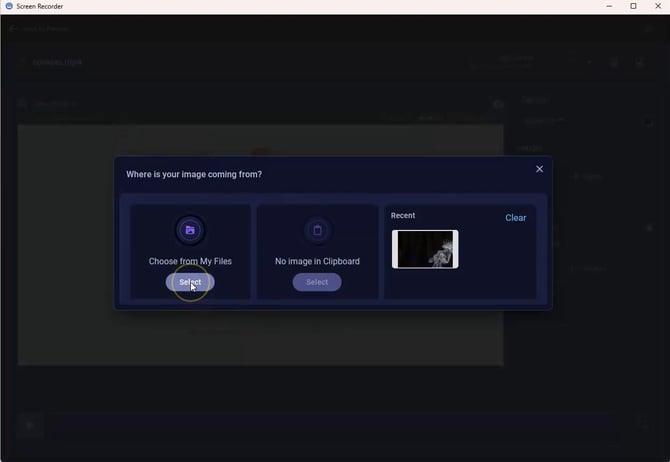
The Where is your image coming from? window
- Drag the image's corner and edge handles until it covers the full screen. You'll know it's right when none of the recording shows around the edges.
- Set how long the image stays on screen in the seconds box beside Cancel and OK. We recommend 3–4 seconds.
- Click OK to apply the image.
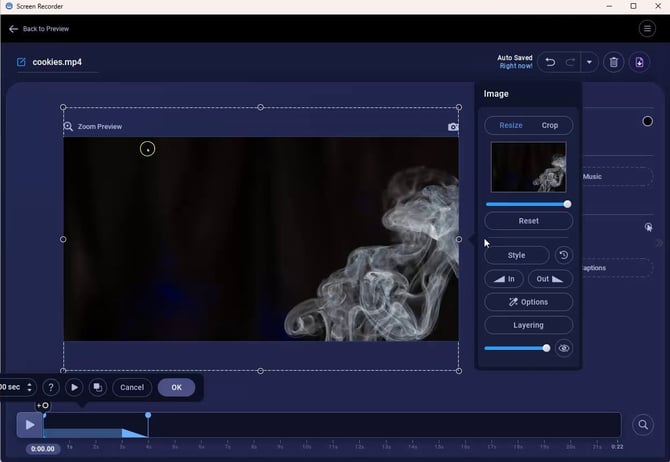
Background image resized to cover the full screen, with the Image panel open
The Image panel on the right also lets you crop the image, add an In or Out transition, and adjust its opacity, but the defaults work well for a title card.
|
Tip: If your image already includes the title text, such as a finished slide, your title card is done at this point. Skip ahead to Check your title card. |
| Add your company name and title |
Next, you'll layer text on top of the background. Most title cards use two lines: a smaller one for your company name and a larger one for the video's title.
- With the playhead still at the start, click Tools and choose Overlay > Text. A text box reading Click here to enter text appears on the preview.
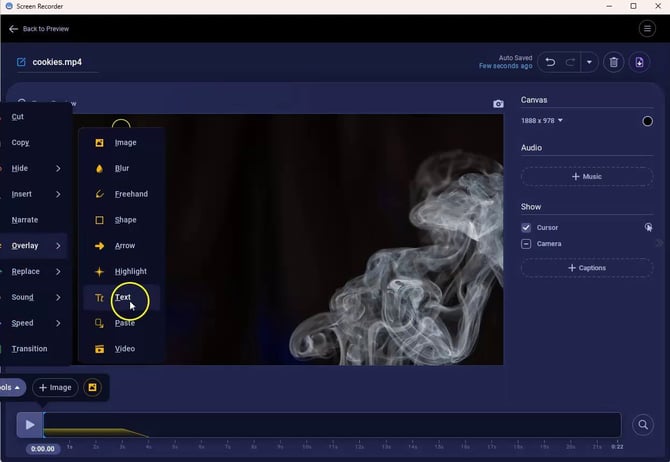
Tools > Overlay > Text in the ScreenPal editor
- Click the text box and type your company name.
- Use the Custom Style panel to format it. On the Text tab, you can change the Color, Font, and Size, and set bold, italic, and alignment. The Background tab adds a colored box behind the text if you'd like extra contrast.
- Drag the text box into place on the background.
- Set the same duration as your background image (3–4 seconds), then click OK.
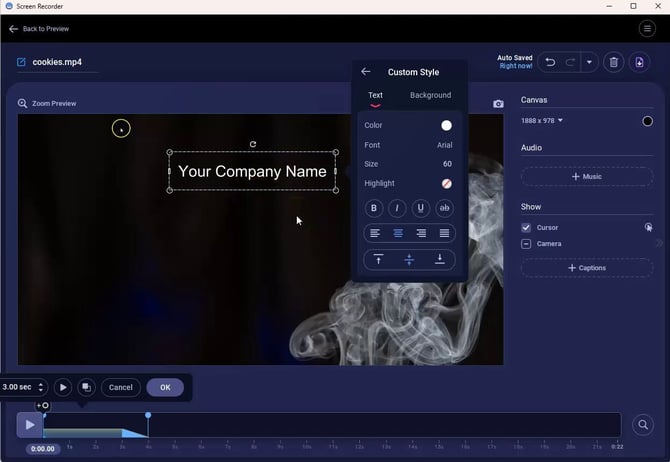
Formatting text in the Custom Style panel
Repeat these steps to add your title as a second text overlay, using a larger size so it stands out. When a text overlay is selected, the Text panel also offers Auto Size, In and Out transitions, and Layering.
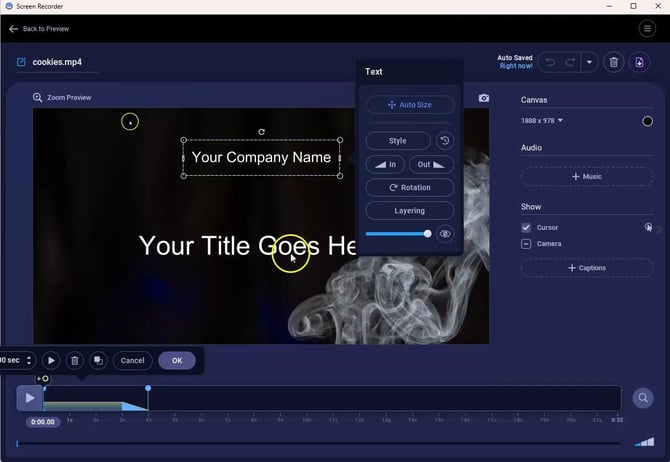
The title text selected, with the Text panel open
| Check your title card |
With all the layers in place, play the opening back to see the finished result:
- Look at the timeline: each overlay shows a marker where it starts, such as Image (starts) and Text (starts).
- Move the playhead to the start and press the play button (or the Spacebar). The title card should appear cleanly for the duration you set, then give way to your recording.
- If a text line is hidden behind the image, select the image on the timeline, click Layering in its panel, and drag the text layers above it.
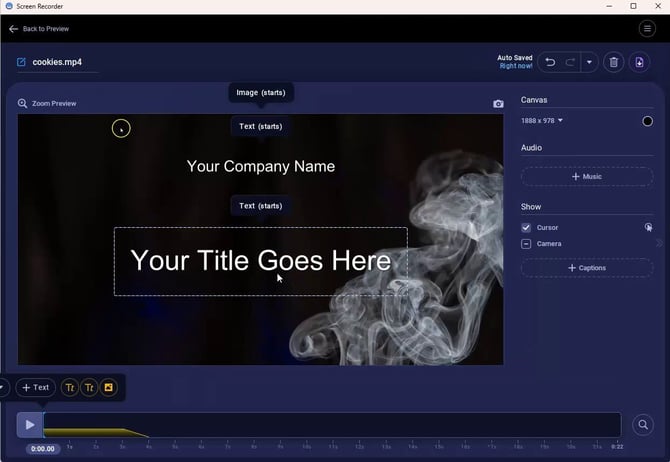
The finished title card, with its overlays marked on the timeline
Using the same background and text style for every feature video is a simple way to make the whole demo feel cohesive. Once you're happy with it, save or export the video and upload it to your demo as usual.
| Troubleshooting |
The cursor still shows over my title card. Make sure the background image covers the full frame and starts at the very beginning of the timeline. A full-screen image overlay sits on top of the recording, so it hides the cursor underneath.
My text disappears behind the background image. Overlays stack in the order you add them. Select the image on the timeline, click Layering in its panel, and drag the text layers above it.
The text stays on screen after the background image ends. Each overlay has its own duration. Select the text overlay and set the same number of seconds as the image.
The title card cuts off my narration. The narration plays under the title card. If you started talking straight away, shorten the title card or re-record with a few seconds of silence at the start.
The background image looks stretched. Use an image with the same aspect ratio as your recording (for most screen recordings, 16:9) so it fills the frame without distortion.
| FAQ |
Can I reuse the same title card for every video? Yes. Images you've used appear under Recent in the Where is your image coming from? window, so you can select the same background each time and change only the title text.
Can I add a closing card too? Yes. Follow the same steps at the end of the timeline. A closing card is a good place for a next step or contact detail.
Can I animate the title? Yes. Select a text or image overlay and use In and Out in its panel to add a transition as it appears and disappears.
| Keep Exploring |
Adding Overlays with the ScreenPal Video Editor · Adding Captions to Your Videos in ScreenPal · Content Creation Templates for ScreenPal & Camtasia