
ScreenPal's video editor lets you place overlays on top of a recording to point things out, hide sensitive details, or add content. Every overlay below is included in the ScreenPal version that comes with Consensus.
|
Before you start: Open your recording in the ScreenPal editor. If you're new to ScreenPal, see How to Install ScreenPal and How to Record Videos with ScreenPal. |
| Find the overlays |
- Move the playhead on the timeline to where the overlay should start.
- Click Tools at the bottom left of the editor and choose Overlay, then the overlay you'd like.
- Add and adjust the overlay (see its section below).
- Set how long it stays on screen in the seconds box, then click OK. Every overlay finishes this way.
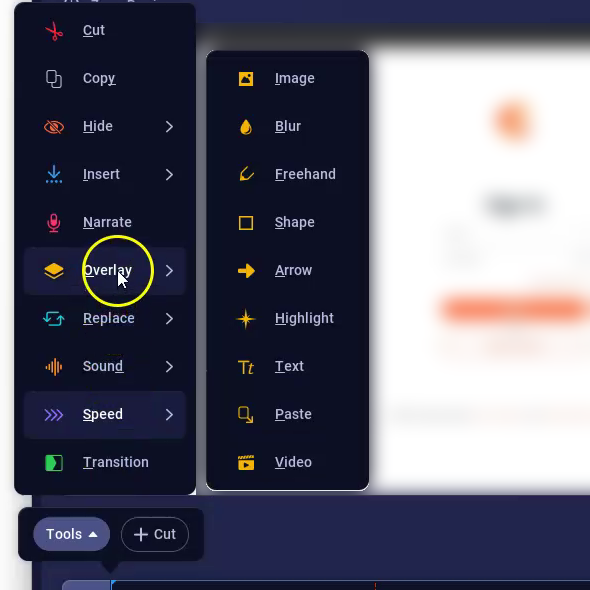
Tools > Overlay in the ScreenPal editor
Jump to the overlay you need:
- Point something out: Arrow · Highlight · Shape · Freehand
- Hide something: Blur
- Add content: Text · Image · Video
- Reuse an overlay: Paste
| Arrow |
- Choose Tools > Overlay > Arrow.
- Click and drag from where the arrow starts to what it points at.
- Click Style to change its color or thickness.
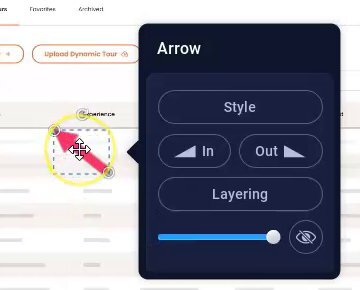
Arrow overlay and panel
| Highlight |
- Choose Tools > Overlay > Highlight.
- Click and drag around the area you'd like viewers to focus on. The rest of the screen dims.
- Click Add Zoom if you'd like to zoom in on that area.
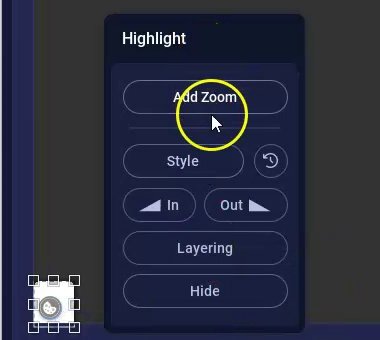
Highlight panel with Add Zoom
| Shape |
- Choose Tools > Overlay > Shape and select a shape, or click … for more.
- Click and drag on the preview to draw it.
- Click Style to change its fill, outline, or color.
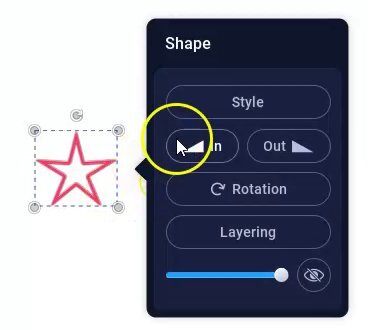 Shape overlay and panel
| Freehand |
- Choose Tools > Overlay > Freehand.
- Click and drag on the preview to draw.
- Click Style to change the color or line.
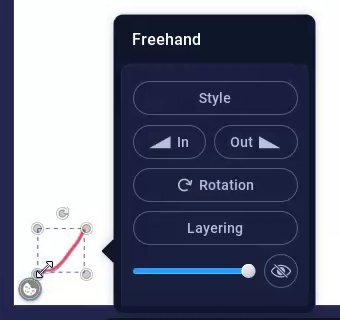
Freehand drawing and panel
| Blur |
- Choose Tools > Overlay > Blur.
- Click and drag over the area you'd like to hide.
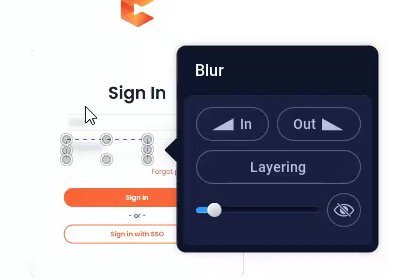
Blur overlay hiding a login field
| Text |
- Choose Tools > Overlay > Text.
- Click the Click here to enter text box, type your text, and drag it into place.
- Click Style to set the color, font, size, and background. Auto Size fits the box to your text.
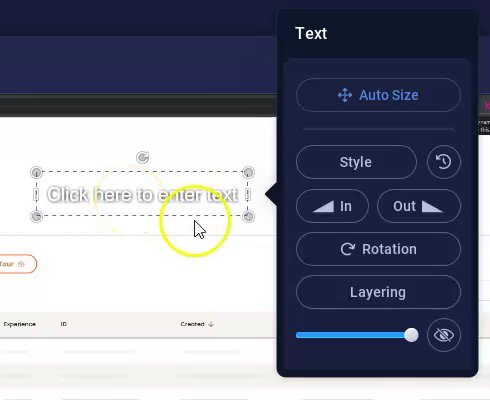
Text overlay and panel
| Image |
- Choose Tools > Overlay > Image.
- Click Select under Choose from My Files, or pick an image under Recent.
- Drag the handles to size and position it. Use Crop if you only need part of it.
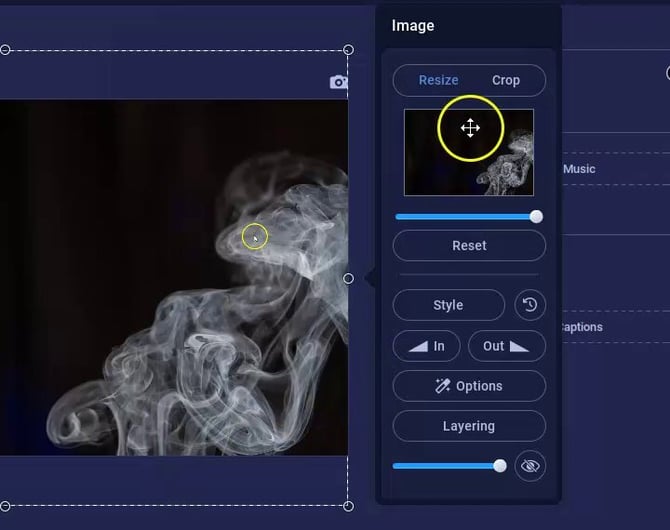
Image overlay and panel
For a full-screen title card, see How to Add a Title Page Using ScreenPal.
| Video |
- Choose Tools > Overlay > Video.
- Click Select under Choose from My Projects or Choose from My Files, then wait for the video to copy.
- Drag the handles to size and position it. Video Options has more settings.
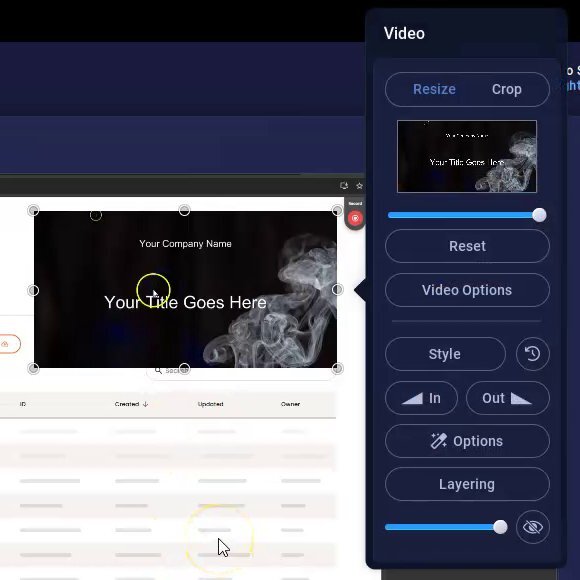
Video overlay and panel
| Paste |
- On the timeline, select the overlay you'd like to reuse and press Ctrl+C.
- Click the spot on the timeline where the copy should appear.
- Press Ctrl+V, or click + Paste Overlay next to Tools.
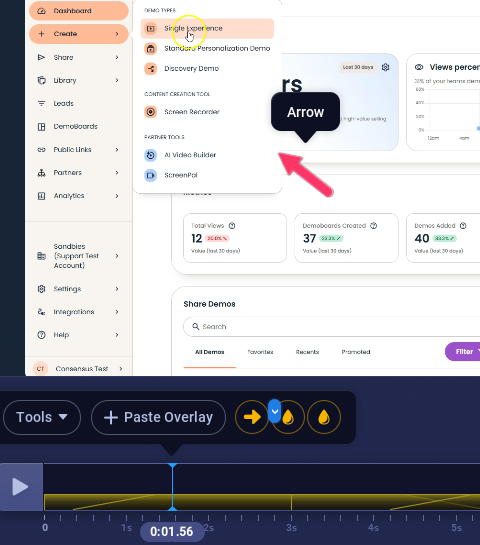
+ Paste Overlay next to Tools
| Change which overlay is on top |
- Select the overlay on the timeline.
- Click Layering in its panel.
- Drag it up or down the list, then click OK.
| Troubleshooting |
An overlay is hidden behind another one. Select it, click Layering, and drag it higher in the list.
The blur doesn't cover the area for the whole clip. A blur stays where you drew it. Stretch it on the timeline, or add another blur where the information moves.
ScreenPal doesn't open from Consensus. Open it from Create > Partner Tools > ScreenPal. If it isn't listed, your admin can turn it on under Settings > Manage Users & Access > Roles & Permissions > Demos > ScreenPal.
| FAQ |
Can I change or delete an overlay after clicking OK? Yes. Select it on the timeline to edit it or remove it.
Are all overlays included with Consensus? Yes. Every overlay listed here is available in the ScreenPal version included with Consensus.
Will overlays show in my demo? Yes. Overlays become part of the video when you save it as a video file, so they play in the DemoPlayer exactly as they look in the editor.
| Keep Exploring |
How to Add a Title Page Using ScreenPal · Adding Captions to Your Videos in ScreenPal · How to Record Videos with ScreenPal