
Your Consensus subscription includes ScreenPal, a full recording and editing suite. Before you record for the first time, you'll install the ScreenPal app on your computer. It takes about a minute, and you only do it once.
|
Good to know: Your admin controls who can use ScreenPal. If you don't see it in the Create menu, ask your admin. |
| Install ScreenPal |
- In Consensus, go to Create > Partner Tools > ScreenPal, and click ScreenPal in the window that opens.
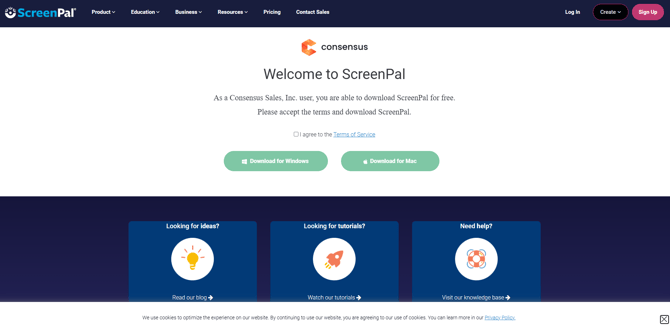
- When you're prompted to install the app, click Download Now. This opens the Consensus and ScreenPal partnership page.
- Tick I agree to the Terms of Service, then click Download and follow the installer.
- Return to Consensus and open ScreenPal again from the Create menu. This time, the recorder opens.
| Important: On the ScreenPal page, don't click Sign Up, It's Free. That installs a different, free version of ScreenPal that isn't connected to your Consensus plan. |
| Extra Step on a Mac |
After installing, give ScreenPal permission to use your screen and microphone:
- Open System Settings > Privacy & Security.
- Under Screen Recording, turn on ScreenPal.
- Under Microphone, turn on ScreenPal.
- Quit and reopen ScreenPal.
| Opening ScreenPal Next Time |
Once ScreenPal is installed, you can also open it while building a demo: in Step 3 of the Demo Wizard, click Record New and choose ScreenPal under Record Using.
| Keep Exploring |
How to Record Videos with ScreenPal · Adding Overlays in the ScreenPal Video Editor · Content Creation Templates for ScreenPal & Camtasia