
Snap shows you how the DemoBoards you've sent are performing, without leaving your inbox or CRM. From the DemoBoards tab, you can see who viewed, how long they watched, and which new stakeholders joined in.
|
Before you start: Snap shows analytics for the DemoBoards you've sent. Sign in to Snap with the same Consensus account you use to send them. |
| Find a DemoBoard |
- Open Snap from your browser toolbar.
- Click the DemoBoards tab.
Each DemoBoard card shows its name, the account it was sent to, whether it's Live, the date it was created, and its Total Views. To find one quickly, type its name in the search bar, or use the funnel icon to sort the list, for example by Total Views or Stakeholders Discovered. See Filters and Sorting in SNAP Extension for every sort option.
Here's the DemoBoards tab:
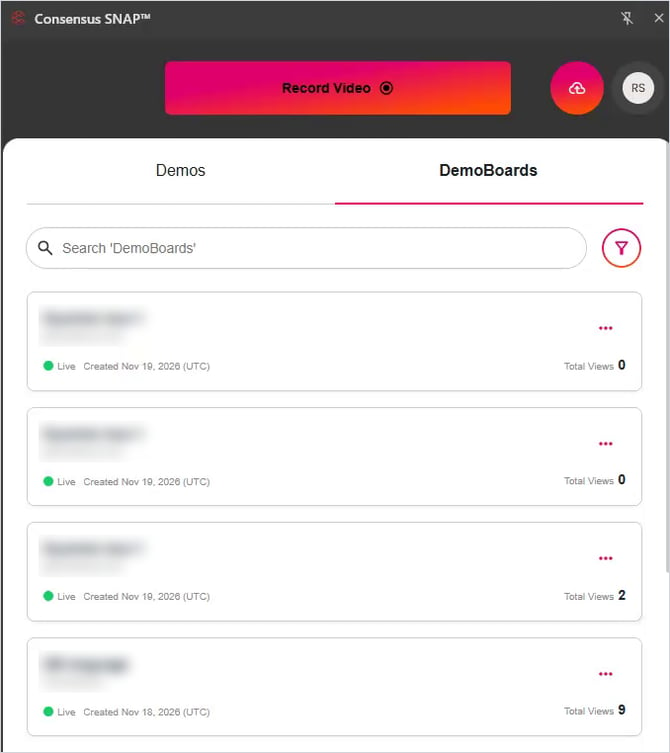
DemoBoards tab in Snap
| Review a DemoBoard's analytics |
Click a DemoBoard to open its details. At the top, you'll see:
- Sent By — who sent the DemoBoard.
- Demos — how many demos it contains.
- Primary Recipients — the people it was sent to.
- Total View Time — how long viewers spent in it, in minutes and seconds.
- Total Views — how many times it's been viewed.
- Interactive Elements Opened, Page Views, Story Plays and Tour Views — how viewers engaged with the content inside.
- Stakeholders Discovered (Shares) — new viewers your recipients brought in by sharing the DemoBoard. These are often decision-makers you haven't met yet.
Below the metrics, Recipients lists each person with their view count, and Demos lists what's in the DemoBoard. The pencil icon beside each section lets you edit it.
Here's a DemoBoard's details page:
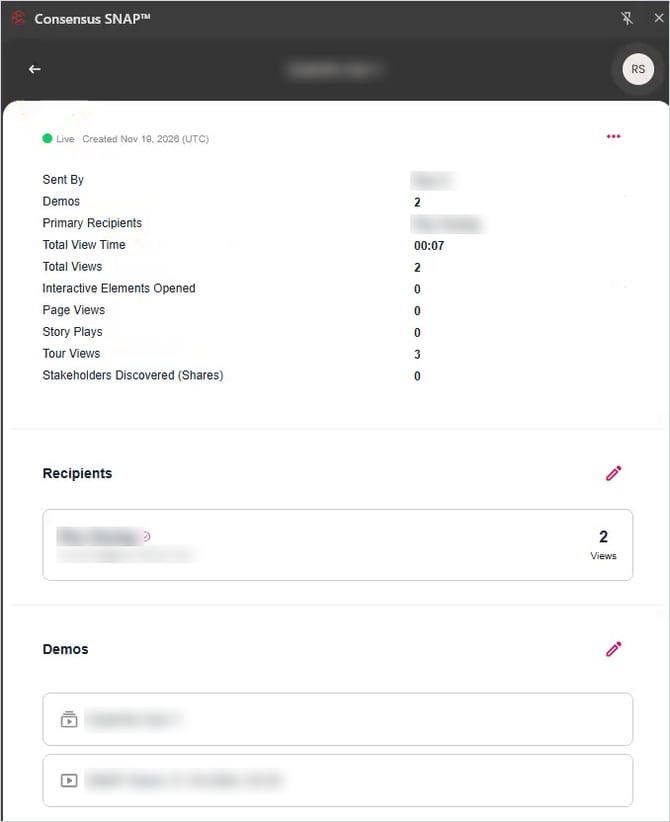
DemoBoard details in Snap
|
Tip: The ... menu at the top right of the details page has quick actions for the DemoBoard: Share As, Edit Details, Expire, Additional Options and Personal Intro Video. |
| See how each recipient engaged |
- In Recipients, click a recipient's name.
- Review their Status (for example, Viewed), Total View Time, Total Views and Shares.
- Under Tour Stats, check Interactive Elements Opened, Page Views, Story Plays and Tour Views for this recipient. This section appears for every DemoBoard, including ones without a tour.
- For the full picture, click View More Details. The recipient's analytics open in the Consensus web app, with heatmaps, engagement insights and the details of each view.
Here's a recipient's details page:
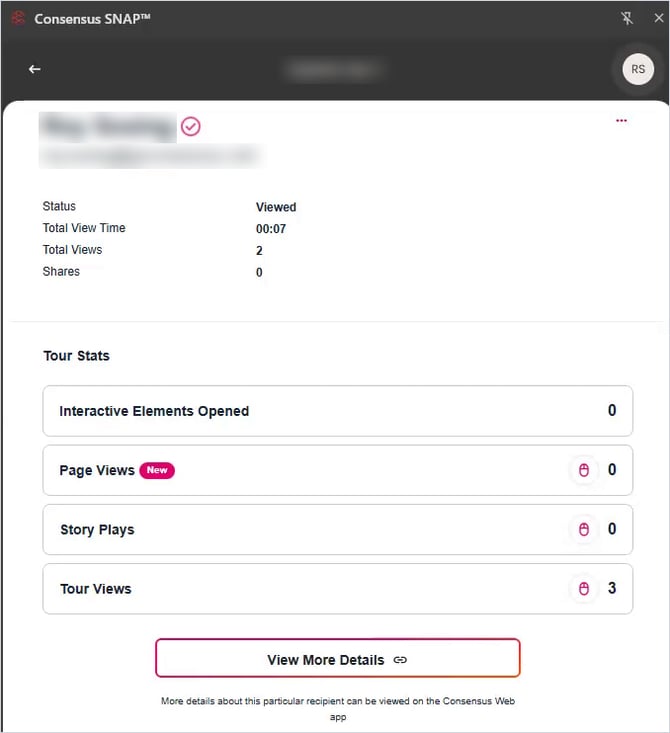
Recipient details in Snap
To go back to the DemoBoard, click the back arrow at the top left of the panel.
| Frequently Asked Questions |
Why do I see DemoBoards I didn't send from Snap? Snap analytics include every DemoBoard you've sent, whether you shared it from Snap or from the Consensus web app.
Where can I see heatmaps and engagement insights? In the Consensus web app. From a recipient's details in Snap, click View More Details to open their analytics there.
| Keep Exploring |
Basics of Track DemoBoards · What does Consensus consider a view? · Sending Demos with Consensus Snap