
Once your Public Links are out in the world, the Track Public Links page is where you'll find them again, see how each one is performing, and decide which links your team should keep using as campaigns come and go. This guide walks you through finding a link, archiving the ones you're done with, bringing them back when you need them, and deleting links for good.
|
Before you start: Anyone with access to Public Links in their Consensus role can archive, unarchive and delete links. If you don't see Public Links in your left-hand sidebar, ask your admin to update your role. |
| Archive or Delete? Know the Difference First |
These two options look similar in the menu, but they do very different things. It's worth a moment to pick the right one:
- Archive — takes the link out of circulation for your team. It's hidden from Track Public Links by default, and no one in your organization can copy or share it until it's unarchived. The link itself keeps working wherever it's already shared or embedded, and Consensus keeps tracking its views and leads. You can unarchive it any time.
- Delete — removes the link from Consensus permanently. It disappears from your list, its Details page can no longer be opened, and viewers can no longer watch the demo. The leads it already captured stay in Leads. This can't be undone.
|
Good to know: Archiving is a way to manage which links your team uses, not a way to switch a link off. That's by design: archived links aren't treated as expired. If you need a link to stop working, delete it instead. |
| Find a Public Link and Open Its Details |
Everything starts from the Track Public Links page, so let's head there first.
- In the left-hand sidebar, open Public Links and choose Track Public Links. You'll see every active link your team has created, newest first.
- Use Search, the date range, or the Filter button (by Demo, Created by or Location) to narrow the list down.
- Click a link's name to open its Details page.
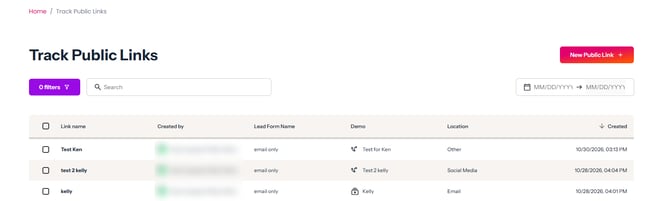
Public Links > Track Public Links page
Just need something quick? Hover over a link's row and four shortcuts appear on the right: Copy Link, Share, Preview, and Edit. That saves you a trip to the Details page when you only want to grab the URL or check how the demo looks.
The Details page brings everything about one link together: total views, anonymous views, and form submissions at the top, then your Qualified Leads and Anonymous Viewers tables below. It's also where you'll find Edit and Share As when you want to change or reshare the link.
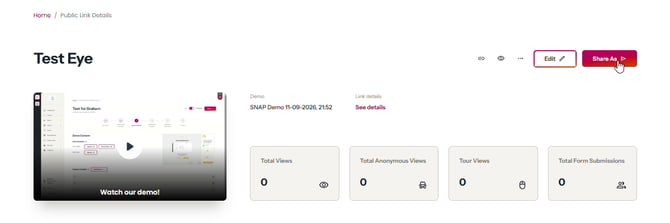
Public Link Details page
| Archive a Public Link |
When a campaign wraps up, archiving its link takes it out of circulation, so teammates don't pick it up for new outreach, without breaking anything that's already live. You can do this from the list or from the link itself.
From the Track Public Links list:
- Hover over the link's row, then click the ⋯ menu at the far right.
- Choose Archive.

The ⋯ menu on an active link
From the Details page: click the ⋯ (More actions) menu next to Edit and choose Archive.
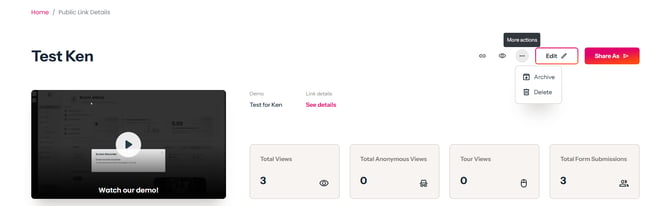
More actions on the Details page
You'll know it worked when the link drops out of your list, and no one on your team can copy or share it from Consensus. Don't worry, it's still live: anyone opening it from your website, an email or a social post will still see the demo, and their views and leads keep showing up on the link's Details page and in your analytics.
| Archive or Delete Several Links at Once |
If you're clearing out a batch of old campaign links, there's no need to go one by one.
- On Track Public Links, tick the checkbox next to each link you'd like to tidy up, or tick the checkbox in the header row to select every link on the page.
- A bar appears above the table showing how many links you've Selected. Click Archive or Delete to apply it to all of them.
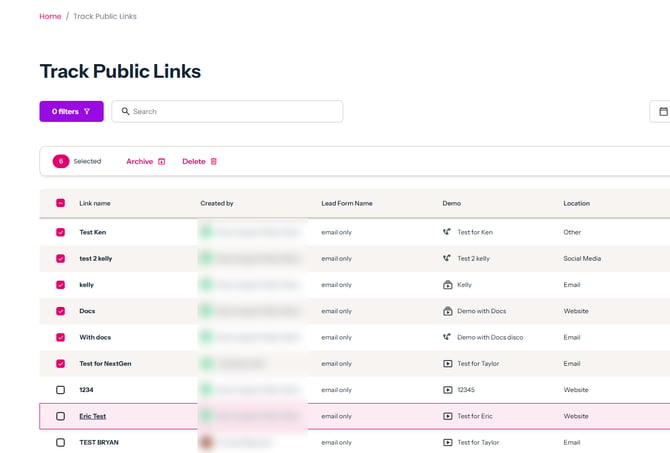
Select several links, then choose Archive or Delete
The same rules apply as for a single link: archived links keep working and tracking, while deleted links stop working for good. To clear your selection, click the X at the right of the bar.
If you select archived links, the bar offers Delete only. There's no bulk unarchive, so archived links are brought back one at a time.
| Show Your Archived Links |
Archived links are hidden by default, so when you need to find one again, you'll switch them back into view with a filter.
- On Track Public Links, click Filter. The Filter Public Links panel opens on the right.
- Under Include, turn on Archived Public Links.
- Click Apply.
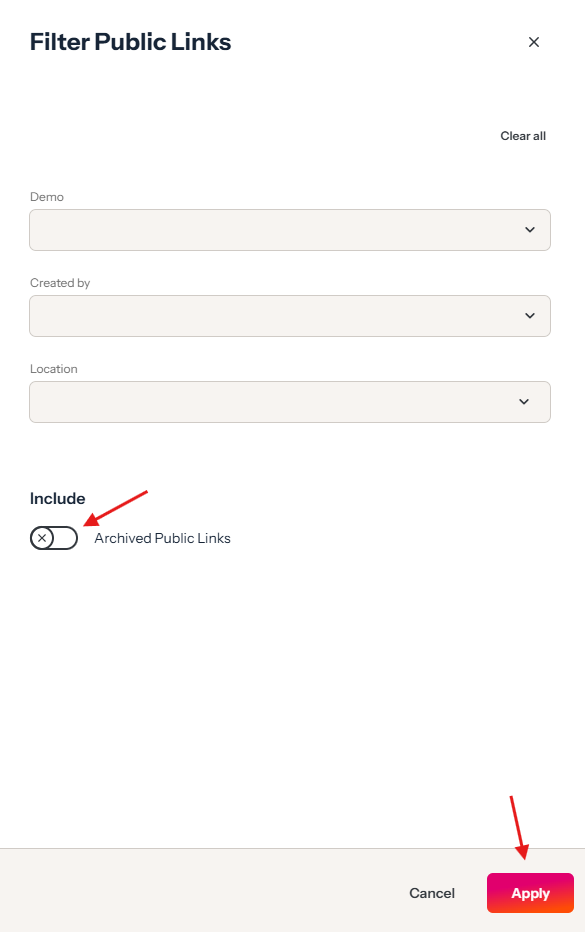
Turn on Archived Public Links, then click Apply
Your archived links now appear in the list, greyed out and marked Archived. An Archived Public Links chip shows above the table so you can tell the filter is on; click the X on the chip whenever you'd like to hide them again.
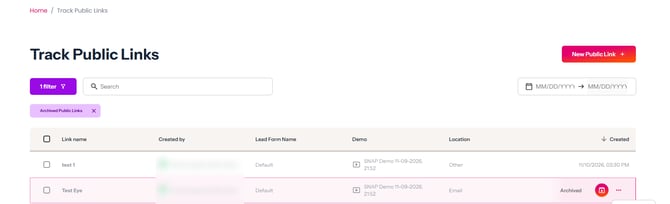
Archived links shown in the list
| Unarchive a Public Link |
Need a link back in your main list, perhaps to edit it or grab its share options again? Unarchiving restores it exactly as it was: same URL, same settings, and all of its views and leads.
From the Track Public Links list:
- Show your archived links using the filter above.
- Hover over the archived link and click the Unarchive button next to the Archived label.
From the Details page: open the archived link and click the unarchive icon next to the Archived label at the top right.
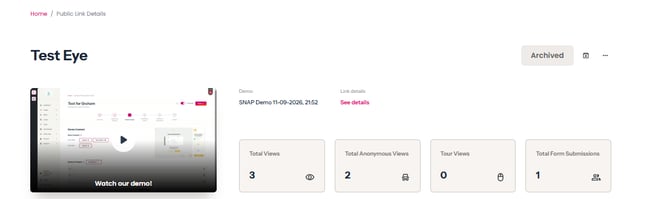
An archived link's Details page
You'll see a Public link unarchived successfully message, and the link moves back into your main list with Edit and Share As available again.
| Delete a Public Link |
Deleting is the right choice when a link should no longer be reachable at all, for example a demo that's out of date or was shared somewhere it shouldn't have been.
You can delete active and archived links alike, so there's no need to unarchive a link first. Start from the list or from the link's Details page.
From the Track Public Links list:
- On Track Public Links, hover over the link. If it's archived, turn on Archived Public Links first so it shows in the list.
- Click the ⋯ menu and choose Delete.
- A confirmation window asks if you're sure you want to permanently delete the link. Click Delete to go ahead, or Cancel to keep it.
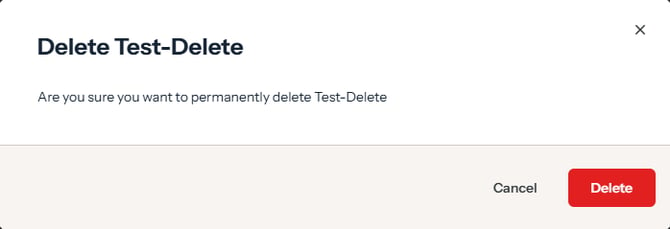
Confirm the deletion
From the Details page: click the ⋯ (More actions) menu and choose Delete, then confirm. On an archived link, Delete is the only option in this menu.
You'll know it worked when the link disappears from Track Public Links. Its Details page can no longer be opened, but the leads it captured stay in Leads > Qualified Leads, where you can still find them by filtering on the demo, and in your Public Link analytics.
|
Before you delete: Deleting a Public Link can't be undone. Anyone who opens the link afterwards sees a message that the content is not currently available, so if it's embedded on your website or in a live campaign, replace it there first so visitors don't land on a dead end. Anonymous viewer details are only shown on the link's Details page, so you'll lose access to those once it's deleted. |
| Troubleshooting |
A Public Link has disappeared from my list. It's most likely been archived. Click Filter, turn on Archived Public Links, and click Apply to bring it back into view.
I can't find the Share As button on a link. Archived links don't show Edit or Share As. Unarchive the link, and both buttons come back.
An archived link is still getting views and leads. That's expected. Archiving takes a link out of circulation for your team, but it keeps working and tracking wherever it's already shared or embedded. If you'd like it to stop, delete it instead.
Viewers see "We apologize, but this content is not currently available." The Public Link they opened has been deleted. Create a new link for the demo and replace the old one wherever it was shared or embedded.

What viewers see when they open a deleted link
I deleted a link, but its leads still show up. That's expected. Deleting removes the link and its Details page, not the leads it already captured. You'll still find them in Leads > Qualified Leads and in your Public Link analytics.
| FAQ |
Does archiving a Public Link stop it from working? No, and that's by design. The link keeps playing wherever it's shared or embedded, and Consensus keeps tracking its views, anonymous viewers and form submissions.
So why archive a link instead of deleting it? Archive when a link shouldn't be reused but can safely stay live, for example a past campaign that's still embedded on an older landing page. Your team stops picking it up, while anyone who already has it can still watch. Delete when the link shouldn't be reachable at all.
Can I edit or reshare an archived link? Not while it's archived. Unarchive it first, then use Edit or Share As on its Details page.
Does unarchiving change the link's URL? No. It's the same link with the same settings and history. Unarchiving simply puts it back in your main list.
Is archiving a Public Link the same as archiving a demo? No. Archiving a link only affects that one link. Archiving a demo is a separate action in your Demo Library; see Archiving Demos.
What happens to the leads from a deleted link? They stay. Leads captured by the link remain in Leads > Qualified Leads (filter by the demo to find them) and in your Public Link analytics. Only the link itself and its Details page are removed, along with the anonymous viewer details shown there.
What do viewers see if they open a deleted link? A short message saying the content is not currently available. The demo won't play.
Can I unarchive several links at once? Not at the moment. Bulk actions on archived links offer Delete only, so unarchive each link from its row or its Details page.
Do I need to unarchive a link before deleting it? No. Delete is available in the ⋯ menu for both active and archived links.
| Keep Exploring |
Where do I get the Public link for my website? · How to Customize Demo Autoplay on Public Links · Where do I find my new leads? · Archiving Demos