
Missed a step halfway through a recording, or want to add an intro? You don't need to start over. ScreenPal's Insert tool adds new or existing footage at any point on the timeline.
|
Before you start: You'll need a recording saved in ScreenPal. If you're new to ScreenPal, see How to Install ScreenPal and How to Record Videos with ScreenPal. |
| Open the recording in the editor |
- In ScreenPal, click the video project you'd like to change.
- In the Options panel, click Edit Video.
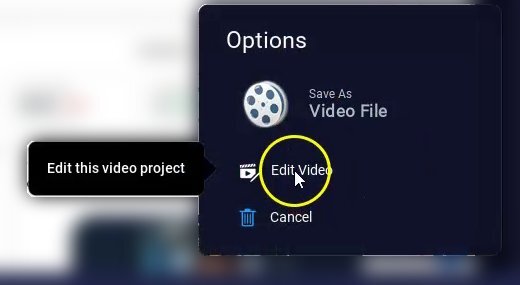
Options > Edit Video
| Find the Insert options |
- Move the playhead on the timeline to where the new content should go.
- Click Tools at the bottom left of the editor and choose Insert.
- Pick the option you need (see its section below).
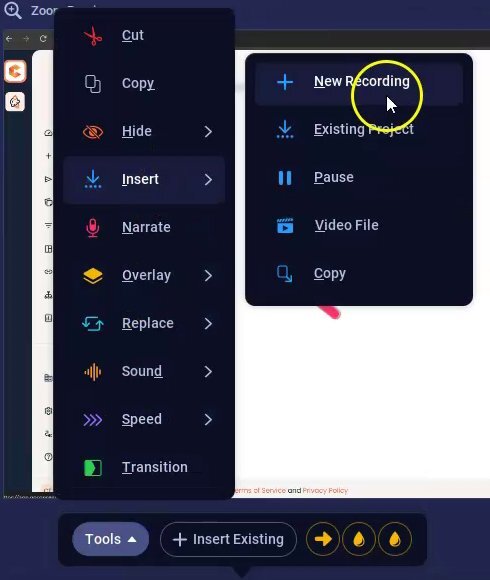
Tools > Insert options
| New Recording |
- Choose Tools > Insert > New Recording. The recorder opens.
- Record the new section, then finish the recording.
- Check the insert point on the timeline, then click OK.
| Existing Project |
- Choose Tools > Insert > Existing Project, or click + Insert Existing next to Tools.
- In Choose Video, click the video project you'd like to add. Use Search Video Projects if you have a lot of them.
- A blue bar shows where the insert will happen. Drag it to adjust, or click the play button to preview.
- Click OK. ScreenPal copies the project into your video, including its overlays.
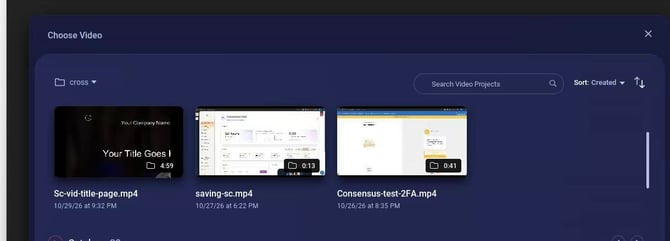
Choose Video window
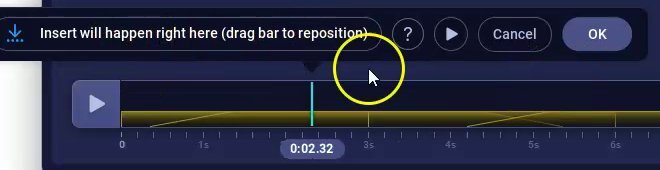
Drag the bar to reposition, then click OK
| Video File |
- Choose Tools > Insert > Video File.
- Pick a video file from your computer, or choose one of ScreenPal's stock videos.
- Check the insert point, then click OK.
| Copy |
- Click the spot on the timeline where the section you'd like to copy starts.
- Choose Tools > Copy.
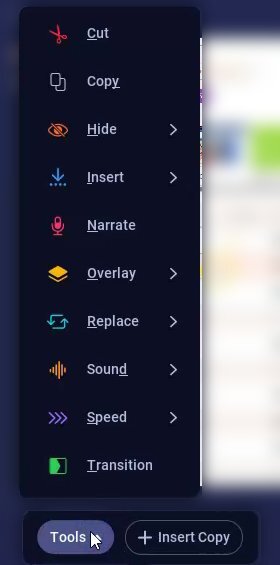
Tools > Copy
- Drag the gray bar across the section you'd like to copy, or click Select All. The length shows in seconds.
- Click OK.

The selected section, ready to copy
- Click the spot where the copy should go. This can be in the same video or in a different video project you open in the editor.
- Click + Insert Copy next to Tools, or choose Tools > Insert > Copy.
- Drag the blue bar to adjust the insert point if needed, then click OK.
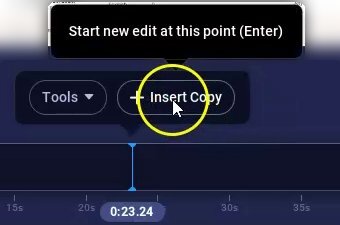
+ Insert Copy next to Tools
To take a copy back out, click it on the timeline, click its icon, and choose Remove.
| Pause |
- Choose Tools > Insert > Pause. This holds the video, audio, cursor, and camera at the playhead.
- Set how long the pause lasts, then click OK.
| Undo an insert |
- Click the Undo arrow at the top right of the editor, next to Auto Saved.
- Hover over it first to check what it will undo, for example, Undo Insert Existing Added.
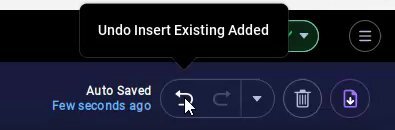
The Undo button
| Troubleshooting |
The new clip went in at the wrong spot. Click Undo, move the playhead to the right point, and insert it again.
I can't find the project I want in Choose Video. Check the folder at the top left of the window, or type its name in Search Video Projects.
My video won't upload to Consensus afterward. Save it from ScreenPal as an MP4 video file before uploading. Other formats, or files recorded with a variable frame rate, can fail to upload.
| FAQ |
Can I paste a copied section into a different video? Yes. After you copy a section, open the other video project in the editor and insert the copy there.
Does inserting change the original project I added? No. Existing Project inserts a copy, so the original project stays as it is.
Will the inserted section match the rest of my video? It will if you record at the same screen size. Play the video back after inserting to catch any jump in size or sound level.
| Keep Exploring |
Adding Overlays with the ScreenPal Video Editor · How to Add a Title Page Using ScreenPal · Adding Captions to Your Videos in ScreenPal